
sudo apt updatesudo apt install gnome-tweakssudo apt-get install gir1.2-clutter-1.0 gir1.2-clutter-gst-3.0 gir1.2-gtkclutter-1.0sudo apt install chrome-gnome-shell- Now try opening https://extensions.gnome.org/
- If it is asking for browser extenion to be installed, then install the extension. chrome webstore link
- Open Files or run command
nautilus - Ctrl + H for showing hidden files.
- Open Home Directory
- Make new empty directory with name
.themesin Home directory - Download this repository https://github.com/paullinuxthemer/Mc-OS-themes
- Extract all directories into
.themesdirectory - Now set the theme McOS-MJV from
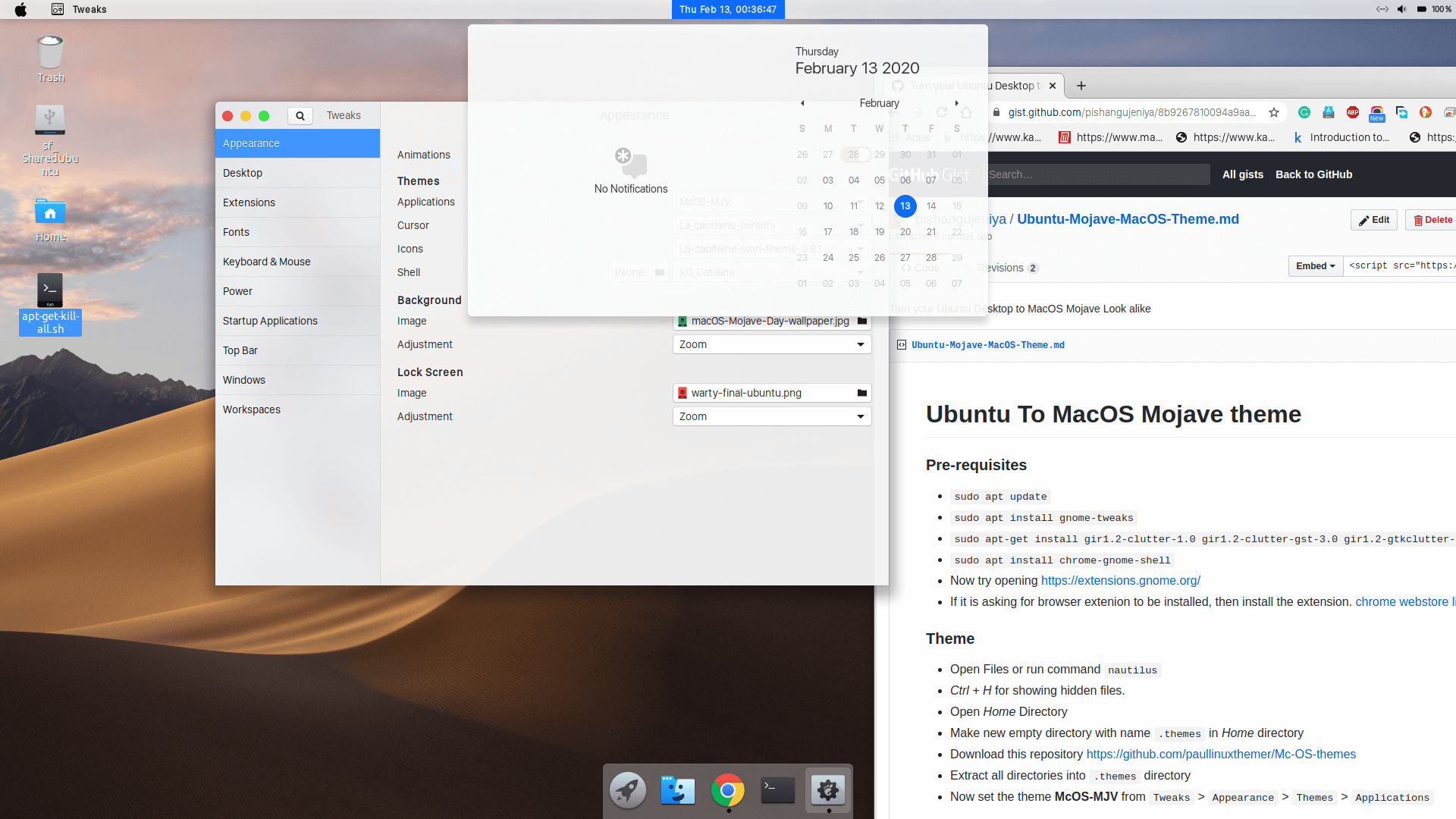
Tweaks>Appearance>Themes>Applications

- Make new empty directory with name
.iconsin Home directory - Download la-capitaine-icon-theme from https://github.com/keeferrourke/la-capitaine-icon-theme/releases
- Extract it to
.iconsdirectory - Now set the theme la-capitaine-icon-theme from
Tweaks>Appearance>Themes>Icons
- Download capitaine cursors from https://www.gnome-look.org/p/1148692 (source repository link)
- Extract it to
.iconsdirectory - Now set the theme la-capitaine-cursors from
Tweaks>Appearance>Themes>Cursor
- Open site https://extensions.gnome.org/extension/19/user-themes/ and make it turn on.
- Open site https://extensions.gnome.org/extension/358/activities-configurator/ and make it turn on.
- Open site https://extensions.gnome.org/extension/1251/blyr/ and make it turn on.
- Now open
Tweaks>Extensionsand try to enable each of them from above.
- Download XONE Catalina for XO.for.Dash.To.Dock from https://www.gnome-look.org/p/1213208 (source repository link)
- Copy
XO_CatalinafromTHEMEdirectory from the downloaded file above to.themesdirectory - Select XO_Catalina in
Tweaks>Appearance>Themes>Shell - Run the command
gnome-shell --versionto find the version of GNOME and keep in mind.
- Copy both the fonts file from
FONTdirectory from the downloaded file above to~/.local/share/fontsdirectory (its hidden directory in your home directory) - Select San Francisco Display Regular in
Tweaks>Fonts>Window Title - Select San Francisco Display Bold in
Tweaks>Fonts>Interface - Select San Francisco Display Regular in
Tweaks>Fonts>Document
-
Dock Settings-
-
Run as, in terminal! one by one
-
Show Apps Button at Left
-
gsettings set org.gnome.shell.extensions.dash-to-dock show-apps-at-top true -
Disable Custom Dock Shrink
-
gsettings set org.gnome.shell.extensions.dash-to-dock custom-theme-shrink false -
Change Dock Transparency mode
-
gsettings set org.gnome.shell.extensions.dash-to-dock transparency-mode DEFAULT -
Disable Extend height!
-
gsettings set org.gnome.shell.extensions.dash-to-dock extend-height false -
Change Dock Position
-
gsettings set org.gnome.shell.extensions.dash-to-dock dock-position BOTTOM -
NOTE-: if you have problem use this Restore to Default all settings.
-
dconf reset -f /org/gnome/shell/extensions/dash-to-dock/
- Download logo .svg from here and copy to
.iconsdirectory. - Close and re-open Gnome Tweaks and enable the Activities Configurator extension from it.
- Settings of Activities Configurator Select the logo .svg and Hide the Text
- Download Highest Resolution Wallper from here
- Right Click > Set as Wallpaper
- Open
Gnome Tweaks Desktop> Turn onHome&Show Icons&TrashTop Bar> Turn OnApplication Menu&Battery Percentage&Activities Overview Hot Corner&Date&SecondsWindows>Titlebar Buttons>Placement>Left
