
sbctl is a user-friendly secure boot key manager capable of setting up secure boot, offering key management capabilities, and keeping track of files that need to be signed in the boot chain.
- Installing sbctl
sudo pacman -S sbctl
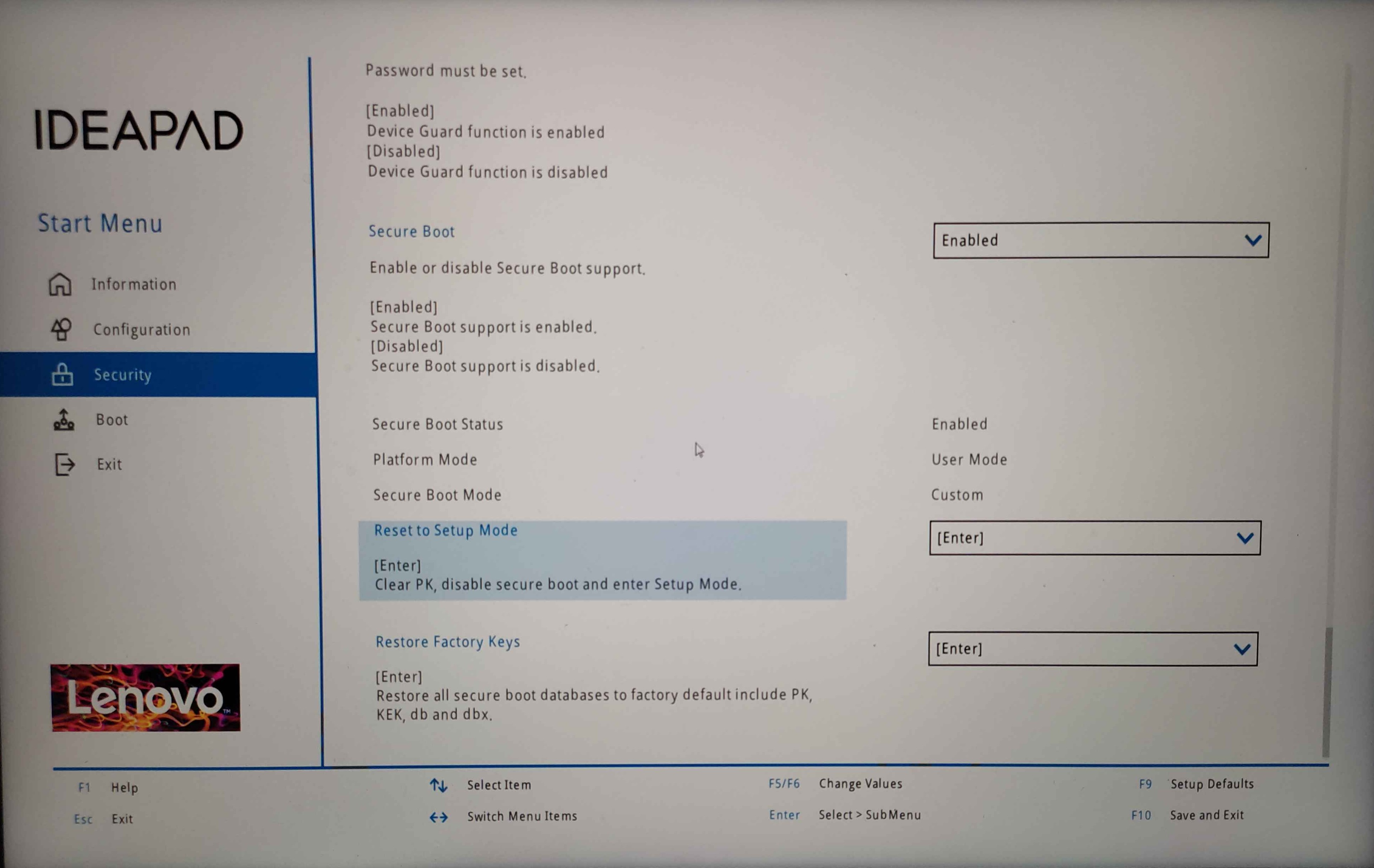
First, we need to go to firmware settings and set secure boot mode to “Setup Mode”. You can reboot from an already running system to firmware settings with following command.
systemctl reboot --firmware-setup
This is how the BIOS looks like on a Lenovo Ideapad 5 Pro. Reset to setup mode or restore factory keys and reboot back to the system.
However, some MSI motherboards don’t have a setup mode. To achieve the same effect, follow the two steps from the image below:

Once your Secure Boot is in setup mode, boot to you OS and proceed with the follwoing:
sudo sbctl status
if setup mode is Enabled we can proceed to the next step
sudo sbctl create-keys
it will look like this
Created Owner UUID a9fbbdb7-a05f-48d5-b63a-08c5df45ee70
Creating secure boot keys...✔
Secure boot keys created!
sudo sbctl enroll-keys --microsoft --firmware-builtin
it will look like this
Enrolling keys to EFI variables...✔
Enrolled keys to the EFI variables!
sudo sbctl status
it will look like this
Installed:      ✔ sbctl is installed
Owner GUID:     a9fbbdb7-a05f-48d5-b63a-08c5df45ee70
Setup Mode:     ✔ Disabled
Secure Boot     ✘ Disabled
Vendor Keys:    microsoft
Limine is a special boot manager that allows checking the hash of kernel images and other files that Limine uses during boot. If this is enabled, any sort of manual configuration done by the user, e.g. signing the image via sbctl-batch-sign, will modify the hash of the corresponding files and fail Limine’s checksum verification.
However, signing these files isn’t necessary on Limine because it has a special boot process that bypasses EFI chainloading and signature checks. The only EFI binaries that need to be signed are Limine itself.
sudo nano /etc/default/limine
- add this line on new line in the file
ENABLE_ENROLL_LIMINE_CONFIG=yes
- save with CTRL+O and exit with CTRL+X
If you use image for you Limine boot screen and its likely that you do, you need to generate B2B checksum and add it to you image path in this way:
cat /boot/limine.conf
look for the line wallpaper: boot():/limine-splash.png it will likely look like this unless you changed it and if so use your custom image filename
sudo b2sum /boot/limine-splash.png
notice that we use absolute path to image here and you will get generated string like this
75205d08fa9c61599897857e861d6b2f6da25465183fc4cc9efecffb22ee630efb510f2ef1b17677db94c28d5c69ad2ceb4d3892f5bec9cfa65c97b5ba16f52f
sudo nano /boot/limine.conf
wallpaper: boot():/limine-splash.png#75205d08fa9c61599897857e861d6b2f6da25465183fc4cc9efecffb22ee630efb510f2ef1b17677db94c28d5c69ad2ceb4d3892f5bec9cfa65c97b5ba16f52f
note that this is just example you must create your own hash and append it
- save with CTRL+O and exit with CTRL+X
-Use limine-enroll-config to enroll the config checksum and sign Limine's EFI binary - this uses sbctl under the hood
sudo limine-enroll-config
sudo limine-update
Done, your secure boot config is setup properly.