
Well, hello there, it's great to see you join us today. We'll be running through a tutorial today around leveraging the Granite open-source model in an interesting foundational way. People look at leveraging models in a local trusted way, or in a "public" way, but turns out there is a place right between them where you can run your trusted local model and share it with your team! In this lab, we'll walk through it, show you how to put it together, and highlight some huge gains you can get with your team if you go down this path. Let's get started!
- Open up Ollama and a terminal, and you should see something like this. (You might have more or less, depending on whether we've cleaned the machine or not.)
rentex@Rentexs-MacBook-Pro ~ % ollama list
NAME                     ID              SIZE      MODIFIED
granite3.3:latest        fd429f23b909    4.9 GB    46 hours ago
granite-code:20b 59db7b531bb4 11 GB 5 days ago-
We are going to play with some prompt engineering first, please take a look at this link starting on Lab 2, and continuing with Lab 3 and Lab 4. This is a great overview of prompt engineering and leveraging
ollamalocally, or if you're feeling adventurous you can try out Anything-LLM which is already installed on your laptop. If you have any questions or concerns don't hesitate to reach out to one of the helpers or raise your hand after your comfortable, head on to step 3. -
Welcome back! Hopefully, you see leveraging granite locally is like any other LLM (or AI, as most would call it) and see that it answered your questions and engaged with you in a positive light. This was all on your local laptop, without going out to the internet or using a paid system. Pretty neat, right? But there's a limitation here, you can only use this LLM if you want to share something amazing you've built, or changed your LLM to do some work for you; having a coworker leverage it is challenging to implement. I'm here to say no, it's not. With the next example, we'll be taking a (albeit small) override model and "connecting" it to a chat system. This could be Slack or Discord in practice, but here in our lab, we'll be using something called IRC.
Note
It's easier to set up and we can just do it instead of dealing with all the newances of the other systems, but we have this code to implyment if you want to at your business!)
- So let's get started, we'll be playing in the terminal and the web browser, for this tutorial, if you have any questions, again, don't hesitate to ask.
- First, go ahead and confirm you have your terminal open, and open up Chrome.
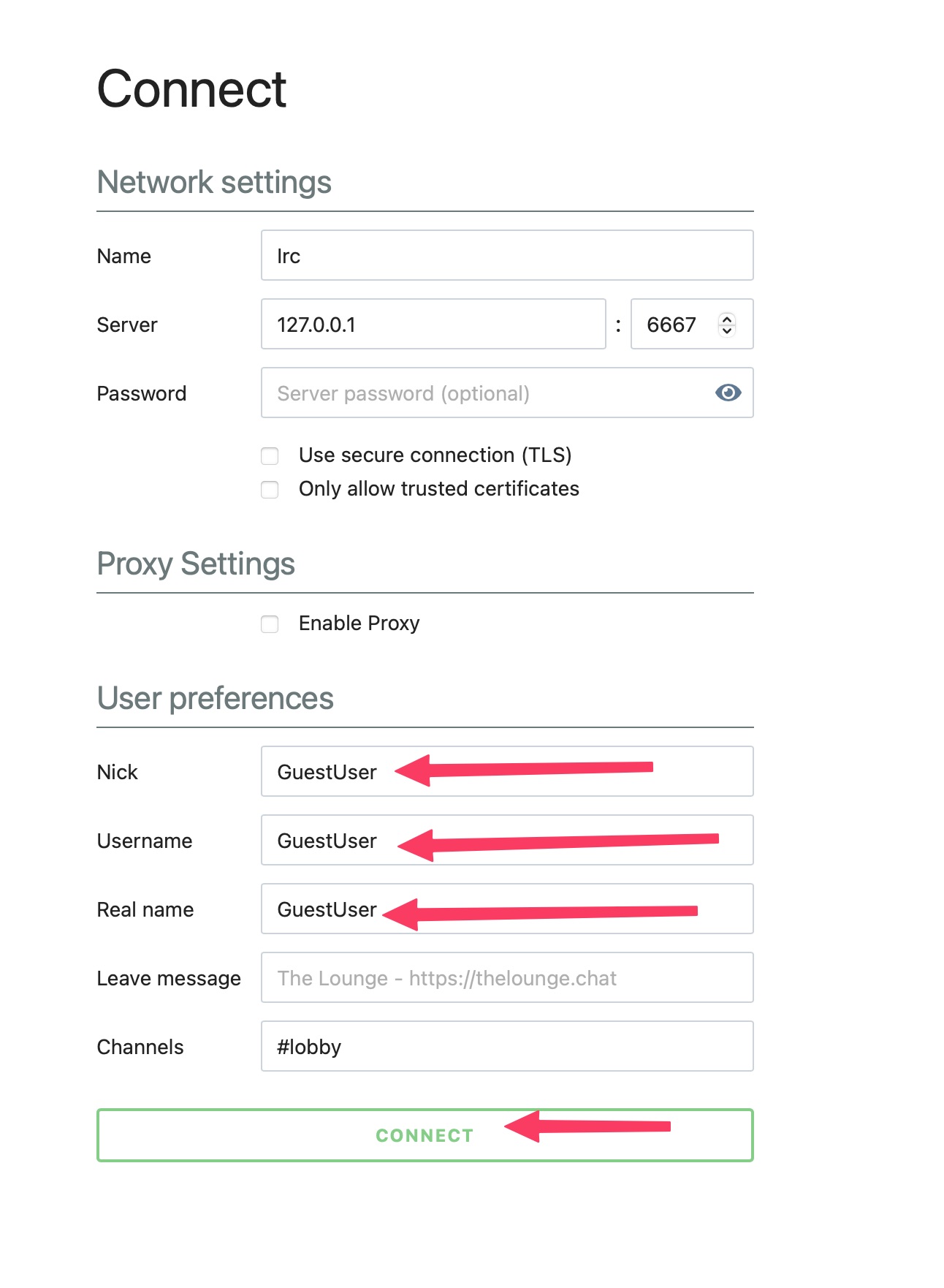
- On Chrome, go to this link, which should also be in the "favorites" bar as "IRC" or the like.
- You should see something like and the "User preferences" section, put your name (or fun name, please be family friendly) and click the "CONNECT" button.
- You should now be in the "#lobby", you should see at least "~jj" in there, that's JJ, the writer and creator of this tutorial. He might be walking around your space right now. He has this on his phone so that you could send him a message! Say
jj: hi! I got connected to the IRC server and am looking forward to learning about the granite model!"
-
Congratulations! You just used IRC to send a message, just like Slack or Discord, but this is what the old school internet users used to use to talk. Now let's get our LLM set up and ready to share it out with our IRC (or Slack/Discord) server.
-
Now, please open up a terminal (or use the same one you used for testing out
ollama). Use the following commands so we make sure we're both in the same place:
cd ~
cd code/modelfiles
ls
- You should see something like:
rentex@Rentexs-MacBook-Pro modelfiles % ls
Modelfile
Note
If you don't, please stop and ask for help. This is required to "fine tune" the model for our lab!
- Good, now run the following command, and I'll explain what's happening in a moment:
ollama create granite3.3-irc:latest -f ./ModelfileThe following file is this:
FROM granite3.3:latest

SYSTEM """
You only answer questions in less then 512 characters, your answers are desgined to be sent to an IRC Channel so you need to be concise.
"""
We are "fine-tuning" our model locally by overwriting the SYSTEM PROMPT so it only answers within these parameters. In this case, back in the day, people didn't have unlimited internet bandwidth, so we had to be conservative with the usage. Sending more than 512 characters in IRC was considered "flooding," so you needed to be concise with your statements. If you needed more space, you'd use something like a "pastebin" (in today's terms, something like https://gist.github.com) and link to it. So here, when we use this Modelfile, will it now only answer in the way we want to To verify this in your terminal, when it's done, run the following command:
ollama run granite3.3-irc:latestAsk it a question or two, and you should see that this is significantly shorter than when you started with granite! This is what we want, right? We don't want to flood our IRC channel and get banned just as we are trying to do something to help everyone out. ;)
- OK, if you've gotten this far, thank you! Hopefully you've learned something and had a little fun. We're getting close to the end, but I wanted to check in to make sure everything makes sense. If it doesn't, don't hesitate to raise your hand...or even better, ping "jj" or another one of the helpers in the IRC channel, we're here to help!
- Next lets get our local
ollamainstance connected to IRC. Run the next commands in your terminal, and we'll get it all wired together.
cd ~
cd code
cd ai-irc-ollama-bot
source venv/bin/activate- Now that you have this, you should see something like this as your terminal:
((venv) ) rentex@Rentexs-MacBook-Pro ai-irc-ollama-bot %Note
If you don't, please stop and ask for help. We want to make sure you're on the correct path here.
- Next we need to open up the
config.tomlto get it connect to our IRC instance. If you know whatvimis, please use the$EDITORof your choice, but if that means nothing to you please run the following command to open our configuration file:
nano config.toml- You should see something like the following:
# AI Bot Configuration

platform = "irc"
bot_name = "ticobotbot" # change this to what you want your local bot name

[ollama]
base_url = "http://localhost:11434"
model = "granite3.3-irc:latest"

[irc]
server = "irc.asgharlabs.io"
port = 6667
channels = ["#lobby"]
nickname = "ticobotbot" # change this to what you want your local bot name
realname = "AI Bot powered by Ollama"
Now we need to update the bot's name, and as you can see, the "model" is using our "irc" version. If you're feeling sassy, you can remove the "-irc" bit, but if you're pressed for time, you can skip this optional step.
Go ahead and come up with a neat name for the AI bot, change it where it needs to be, (bot_name and nickname) and then use CONTROL-Xto quit, saying "Y" to save the changes, and hit "return" to write the file. You should be back at your command prompt. Next we need to start the bot! Run the following command:
python main.pyYou should see something like the following:
🤖 AI Multi-Platform Bot
==================================================
2025-08-06 10:15:46,575 - __main__ - INFO - Configuration loaded from config.toml (TOML format)
2025-08-06 10:15:46,576 - __main__ - INFO - Configuration validation passed
2025-08-06 10:15:46,576 - __main__ - INFO - AI Bot initialized for platform: irc
Platform: irc
Bot Name: techXchangeBot
Ollama URL: http://localhost:11434
AI Model: granite3.3:latest
==================================================
2025-08-06 10:15:46,588 - __main__ - INFO - Ollama service is available. Models: ['granite-code:8b', 'granite3.3:latest']
2025-08-06 10:15:46,588 - __main__ - INFO - Starting IRC bot...
2025-08-06 10:15:46,588 - irc_client - INFO - IRC Bot initialized for irc.asgharlabs.io:6667 as techxchangebot
2025-08-06 10:15:46,588 - irc_client - INFO - Starting IRC bot...
2025-08-06 10:15:46,992 - irc_client - INFO - Connected to IRC server
2025-08-06 10:15:46,993 - irc_client - INFO - Joined channel: #lobby
Success! You have the bot connected to the #lobby go back over to the IRC channel and see if you can see your bot's nickname.
If you do, you can talk directly to it, change the botname to your botname, and ask it who Batman is. :)
botname: who is batman?
In the logs, you should see your question, then the "Sent public response" confirmation. Amazing right? So what does this mean?
So cool, you have just connected a local AI to an IRC channel. It took a little longer than you'd hope, but why should you be interested in this at all? As mentioned earlier, you can switch IRC out for something like Slack or Discord (or Teams if you really have to), and you can now collaborate with your coworkers with this bot. As promised, the code is here. But asking a bot "Who is Batman?" or "What is the capital of France?" can help with Trivia, but not that useful, right? Correct. But this brings us to agentic workflows, if you can create a model that has a specific job on your laptop, controlled, private, and trusted in your space. Now you can share it directly from your computer in a controlled manner. This opens the door for some fantastic opportunities, giving your team a trusted AI that can do precisely what you want to make happen on your hardware and in your space. We have another demo of taking this same foundation, PUT VIDEO HERE ABOUT AI PR BOT code, and running it to give us predictions on whether AI writes a PR from GitHub on a public project or not.
Hopefully you've enjoyed this at least a bit. I bet you didn't think you'd be using a technology that was created in August 1988 to talk to a modern AI model today, did you? When you think about it for a moment, it's crazy, but amazing at the same time. As technologists, we're attempting to leverage AI to make our lives easier, but one of the problems this lab attempts to answer. How can I have a model that does something so well, but I can't share it with my team? This is at least one answer to it, and with a little bit of wiring, you can make it just "work." Thank you so much for getting this far, and please don't hesitate to ask any follow-up questions to the helpers or team members, we want you to walk away happy.